

Decision Maker
- Category: Task Planners
- Platform: Microsoft Excel
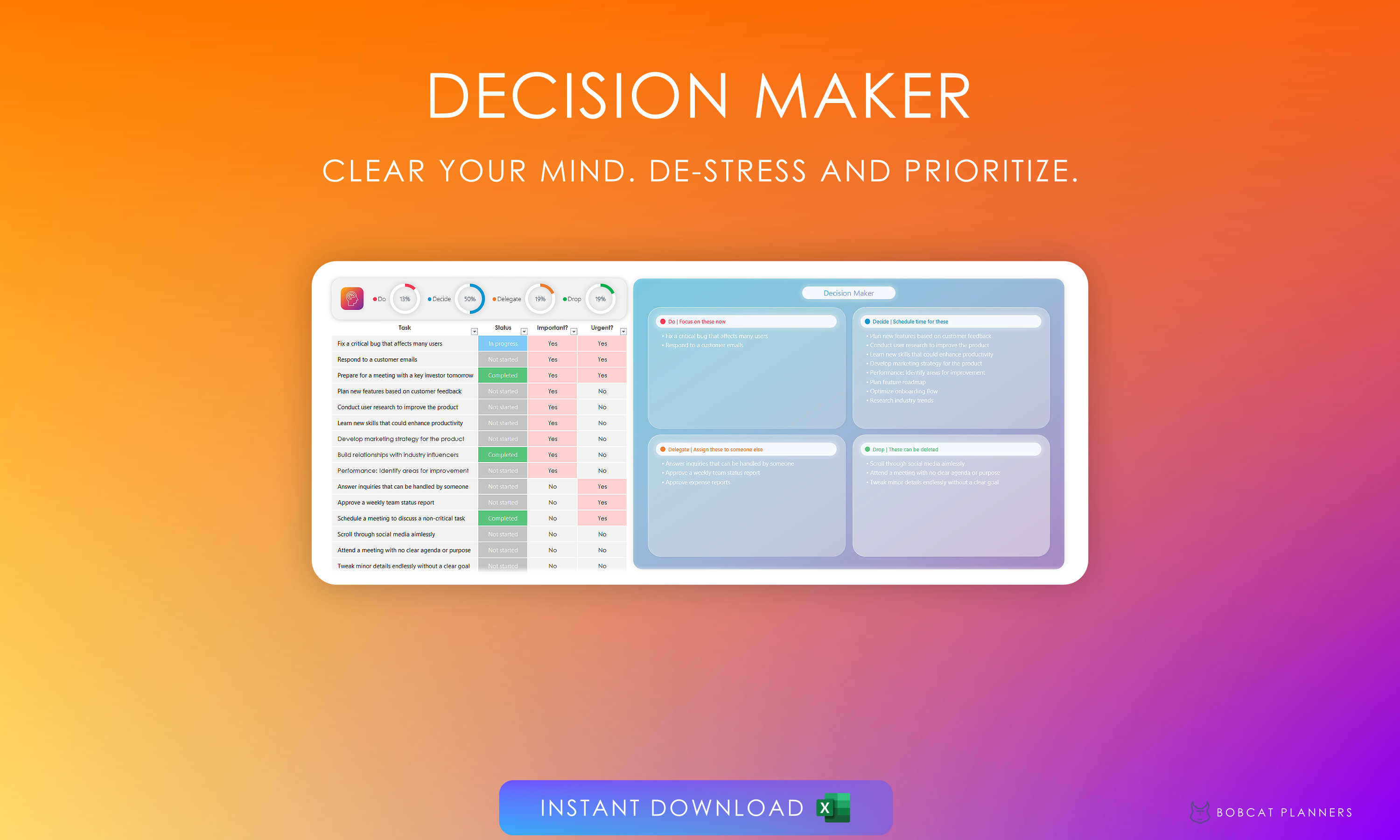
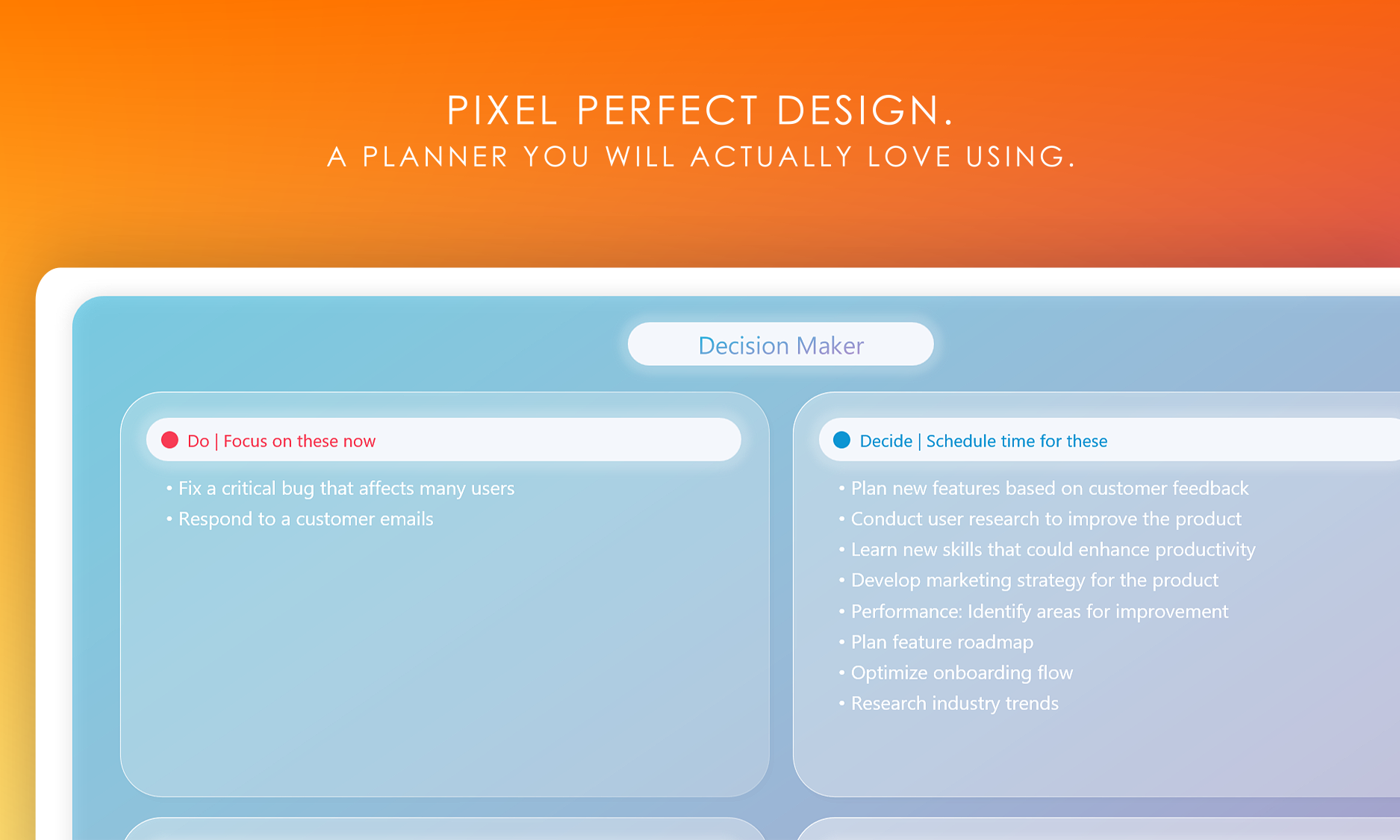
- Description: Feeling overwhelmed by endless tasks and constant thoughts racing through your mind? It’s time to clear the clutter and regain control with the minimalist "Decision Maker." This beautifully designed digital tool simplifies your decision-making process, allowing you to focus on what truly matters.
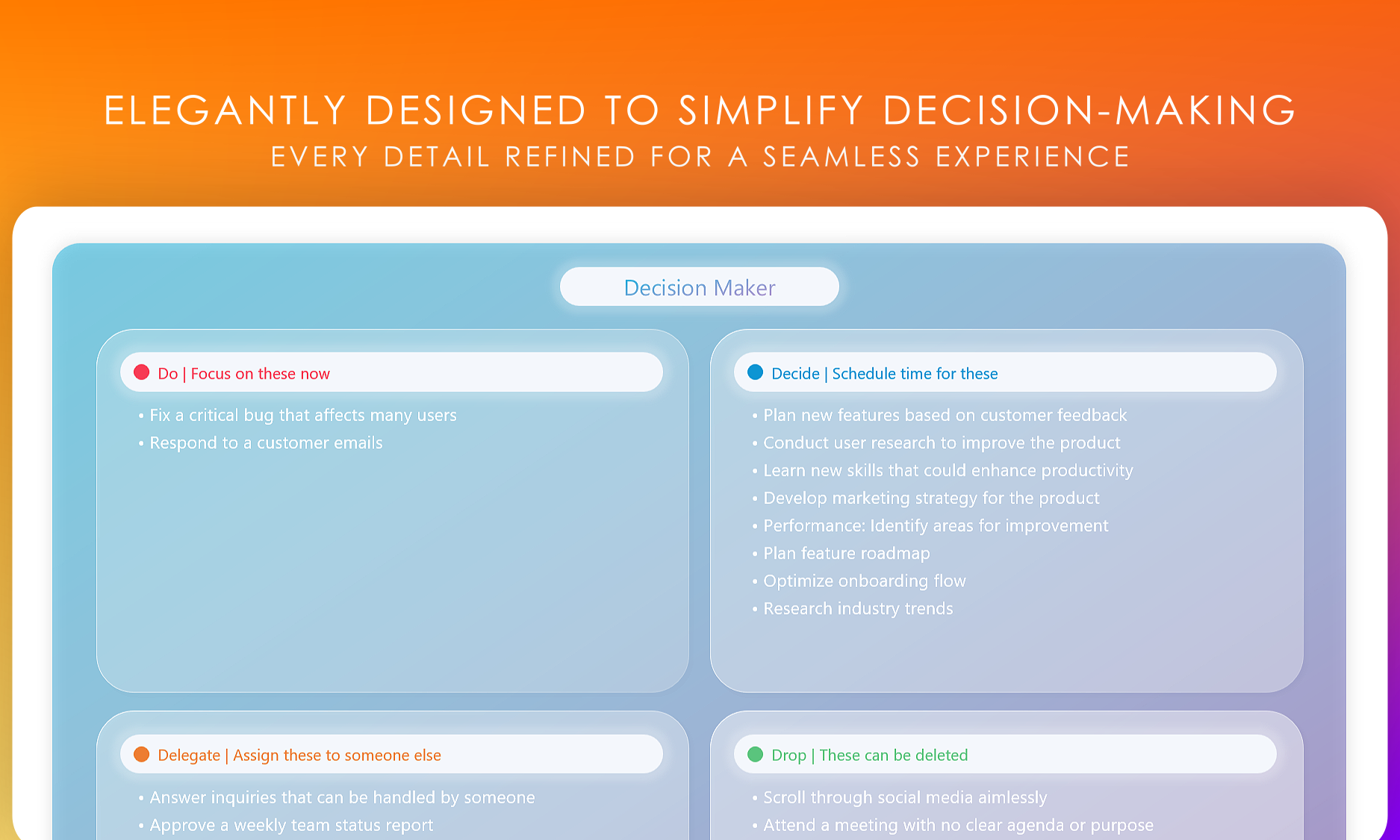
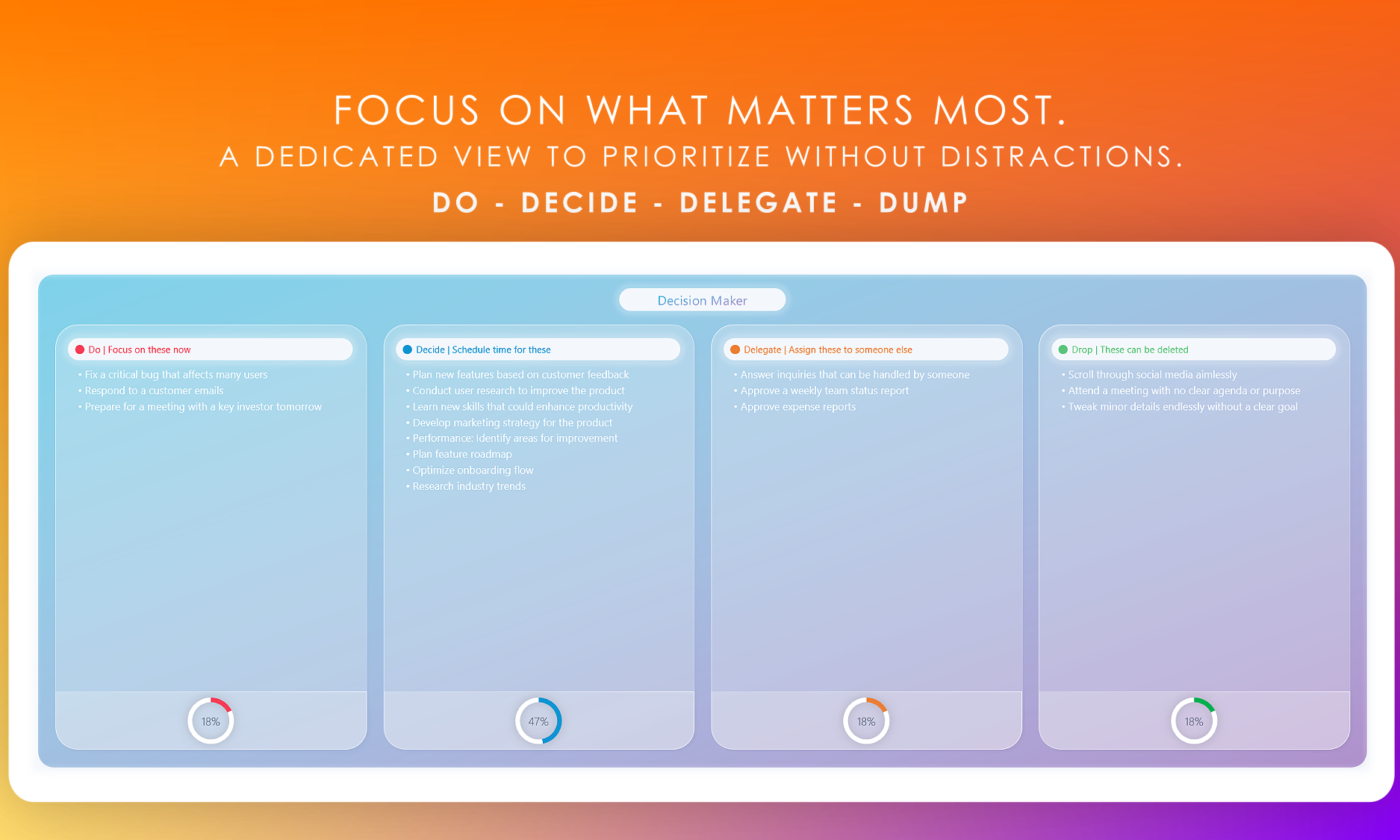
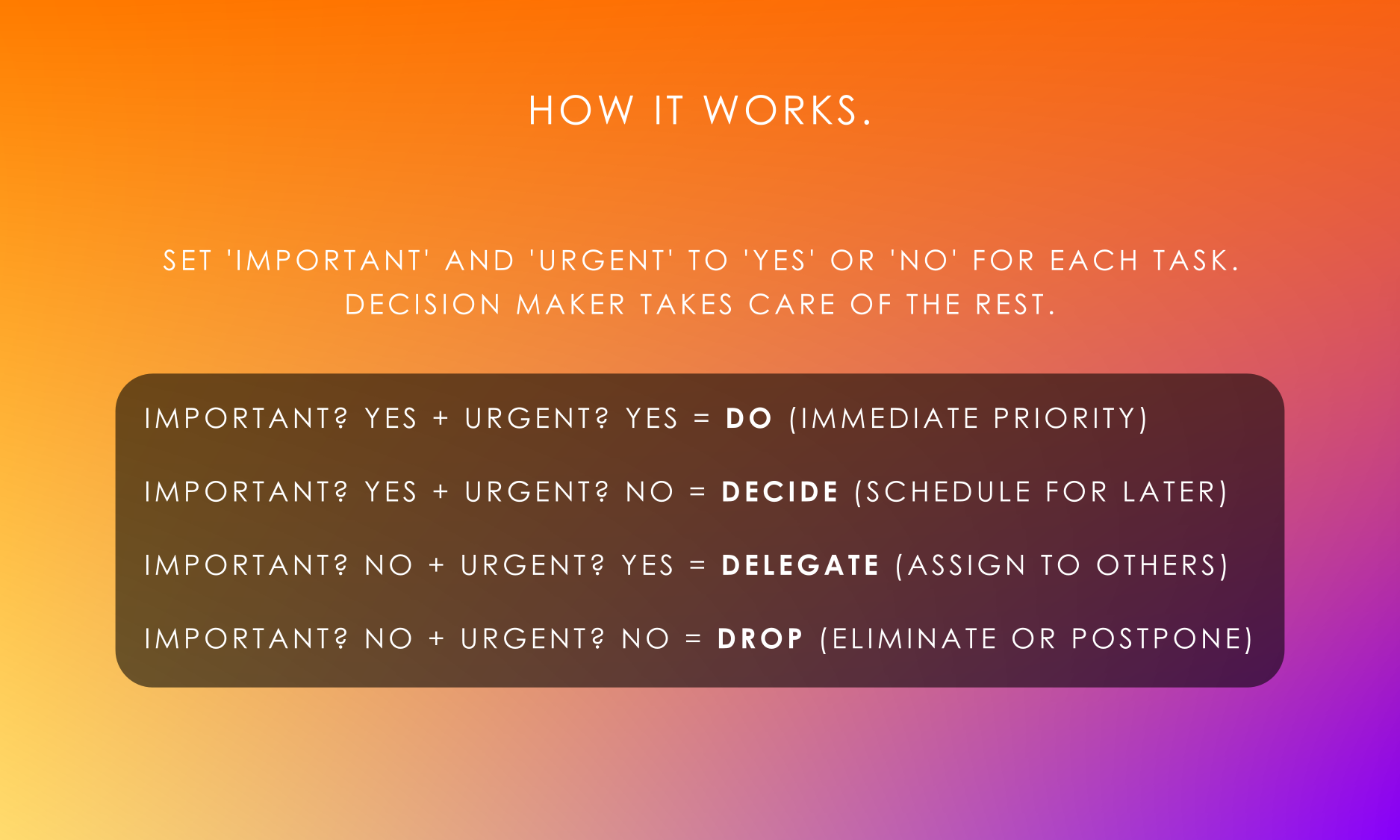
With "Decision Maker," effortlessly organize your tasks using the proven Eisenhower Matrix. Whether it’s important, urgent, or something that can wait, your tasks will fall into place, making it easy to decide what to do next. The sleek interface and intuitive design help you destress by giving you a clear overview of your priorities.
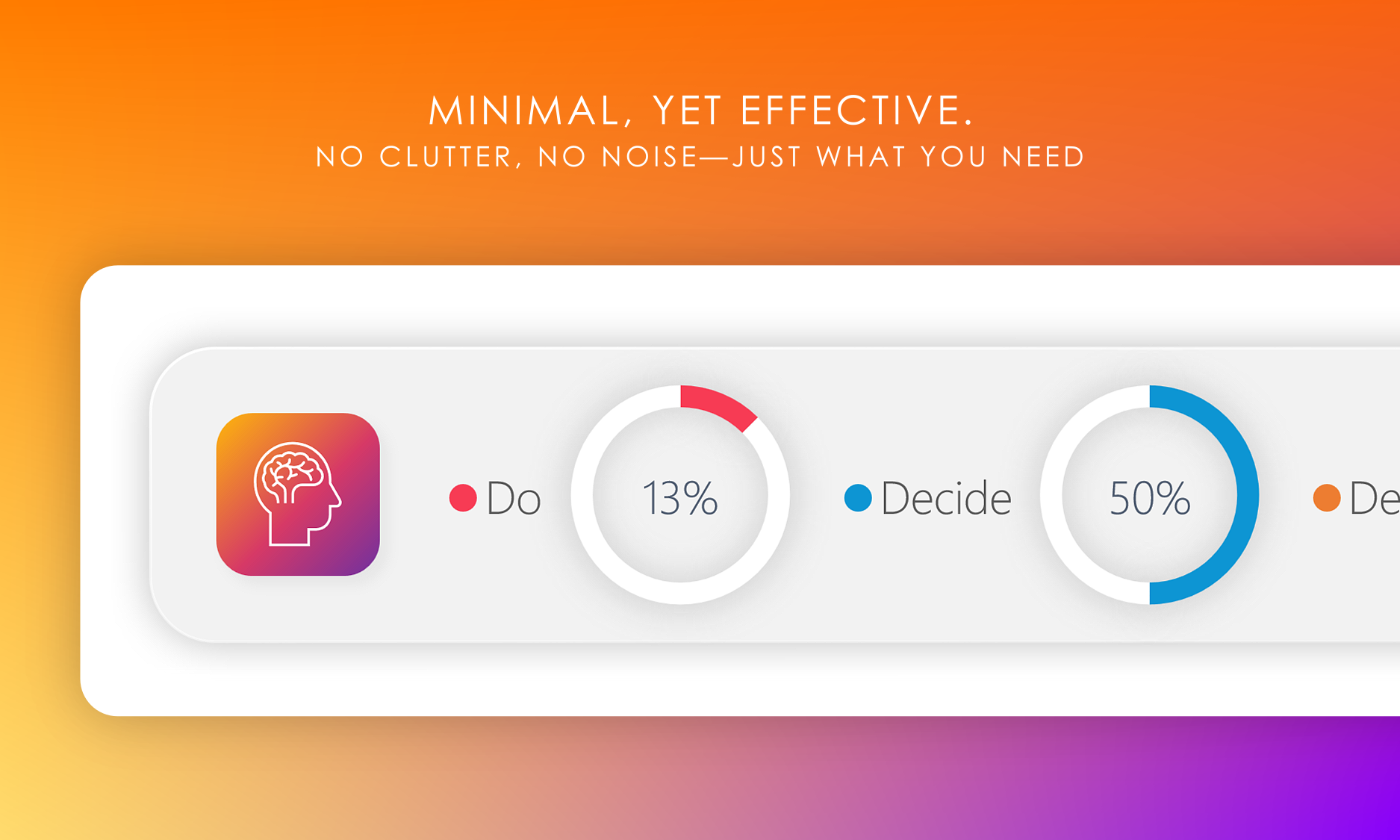
The magic of "Decision Maker" lies in its simplicity. No overcomplicated charts, no unnecessary features—just a clean, powerful planner that lets you focus on getting things done. Visualize your progress with percentage breakdowns, and watch as your mind clears, one task at a time.
Features
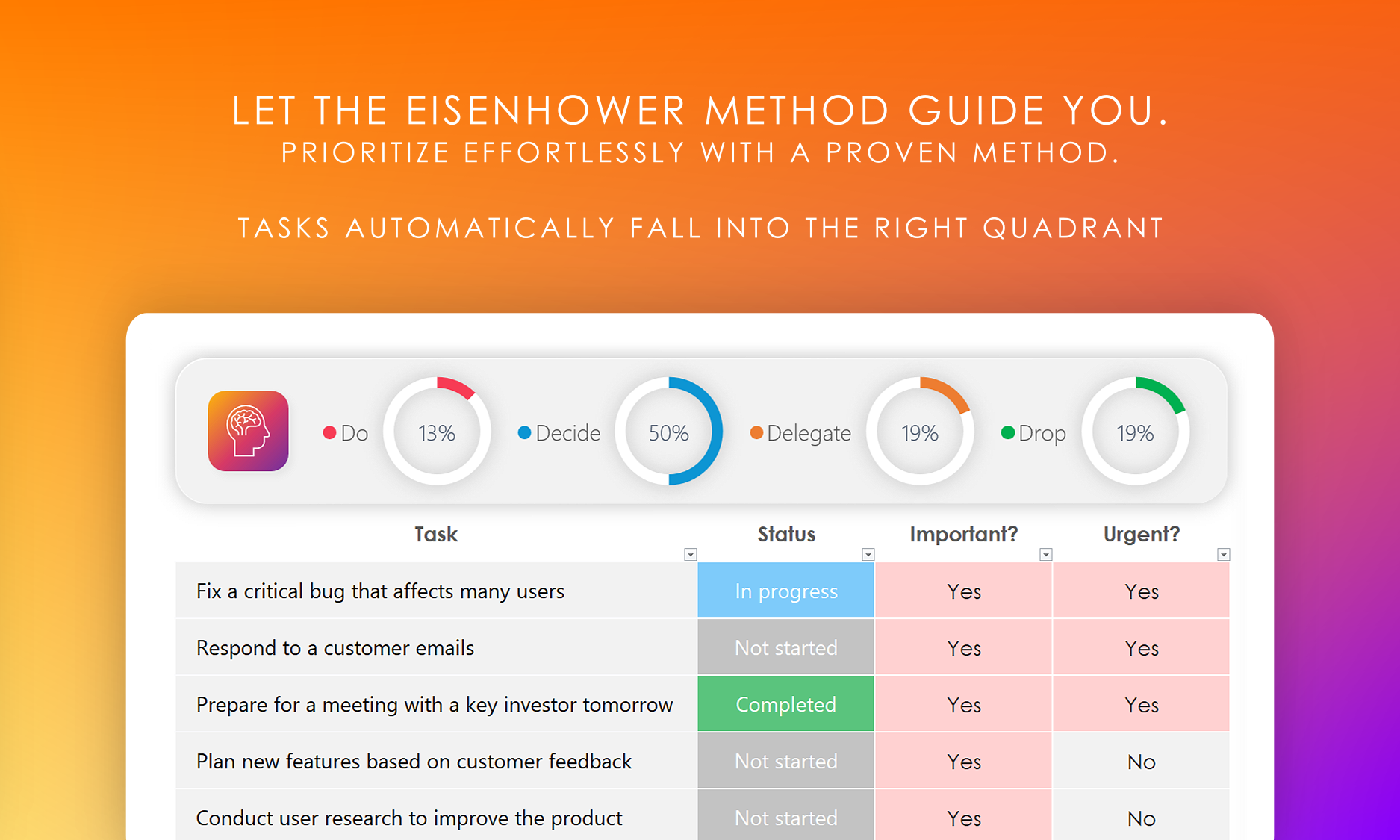
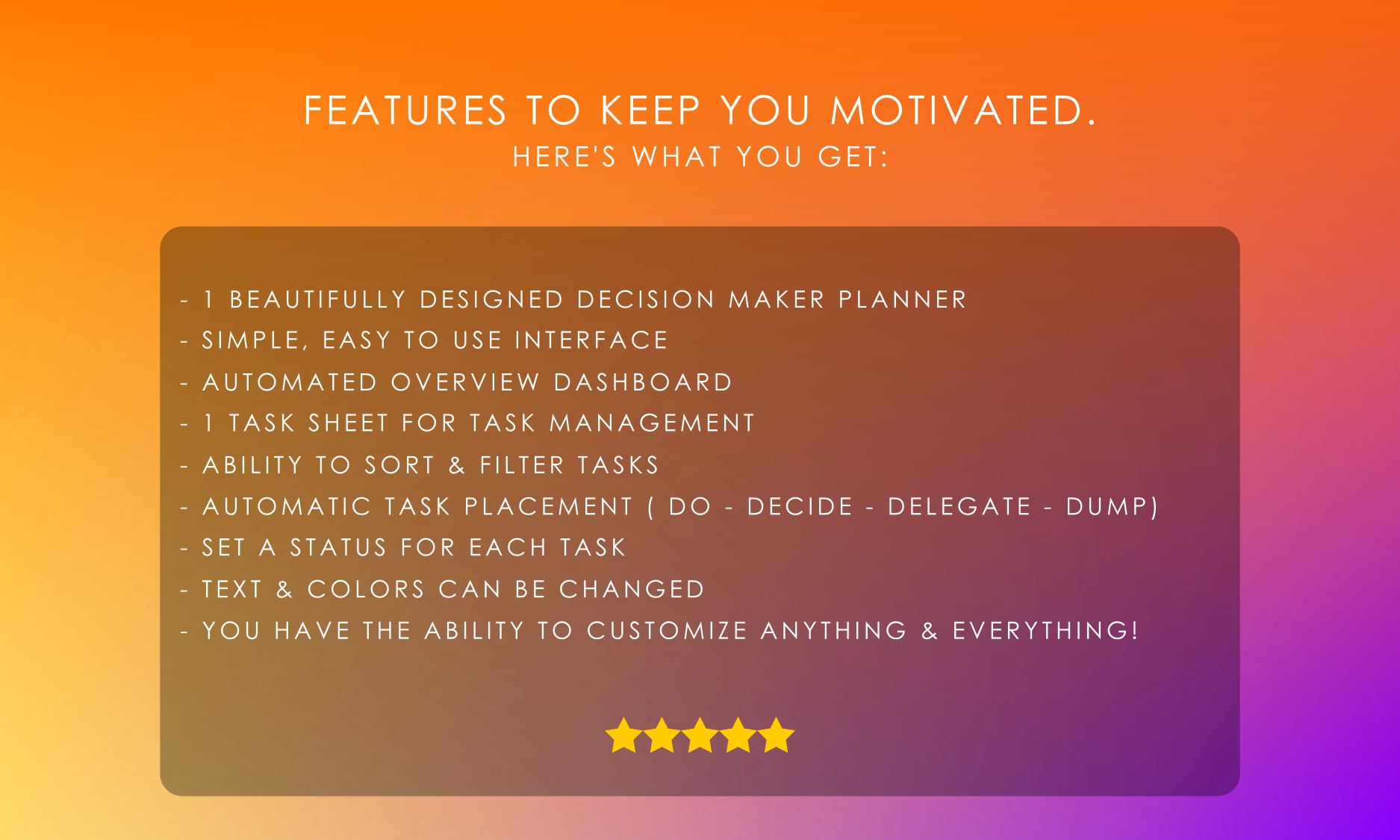
✔️ Automatic task sorting based on importance and urgency
✔️ Intuitive percentage trackers for each quadrant
✔️ Easy-to-use interface with a focus on clarity and simplicity
✔️ Customizable to fit your personal workflow
✔️Modern & Easy to use interface
Get started with your planner
Learn how to get the most from your new planner
Start creating tasks
The Tasks sheet allows you to list all your tasks. Each task contains the following columns:
- Task: Enter the name of your task.
- Status: Select a status from the dropdown menu.
- Important?: Ask yourself if you feel this task is important, then select Yes or No.
- Urgent?: Ask yourself if you feel this task is urgent, then select Yes or No.
🟢 Tip: Decision Maker uses the Eisenhower Matrix method in order to prioritize tasks based on their urgency and importance.
Configure the Settings sheet
Select the ‘Settings’ sheet and enter the following information:
- Status: You may rename one or more of the default statuses.
- Hide completed tasks from decision matrix: Select 'Yes' if you would like 'Completed' tasks to be hidden from the matrix. Otherwise, select 'No'.
🟢 Tip: To remove an entry in the ‘Status’ list, right click on the entry and select ‘Delete -> Table Rows’.
-
How can I edit the dashboard on the Overview sheet?
The Overview sheet is protected by default in order to prevent accidental changes.
To edit it, you must unprotect the sheet by clicking the 'Review' tab and clicking 'Unprotect sheet'.
-
How can I change the Status or Priority colors?
1. Ensure you have the Project sheet selected.
2. Click the Home tab, click 'Conditional Formatting' and select 'Manage Rules...'
3. Double click on a color which you would like to change.
4. Click the 'Format...' button.
5. Click the 'Fill' tab.
6. Select the color of your choice.
7. Click OK on all open dialogs.
-
Can I filter my tasks so that I only see those for a specific status, or priority?
Yes, you can easily apply filters on the Tasks sheet.
Simply click the Filter button at the top of the desired column and check or un-check any of the available checkboxes.
-
Can I sort my tasks by category, status, priority, or any other data type?
Yes, simply click the ‘Filter button’ at the top of the column and select “Sort A to Z”.
-
How should I delete a task?
You may highlight any cell that you would like to clear and hit the Delete key on your keyboard.
-
I’ve reached 100 tasks; how can I add more rows?
Your planner comes with 100 blank rows; however, you can add more by right clicking the last row and selecting “Insert -> Table Row Below”
-
How can I contact Bobcat Planners?
Contact us via the Bobcat Planners Etsy shop any time!